Pin the pattern on the Sharing tab. You can filter patterns by clicking on the coloured tabs.
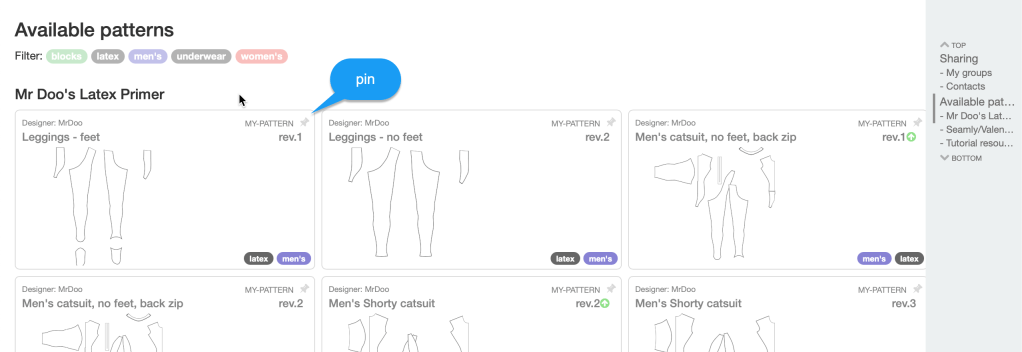
Navigate to the pattern by clicking on it.

The pattern initially displays with the shared measurements. These are useful as a comparison.
Switch to the measurements tab.
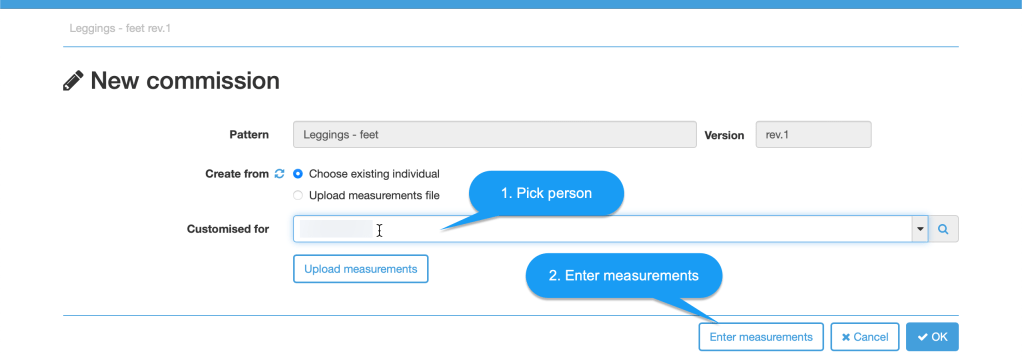
Click [Add commission] to associate this pattern with an individual.

Pick the person the pattern should be customised for. Then proceed to enter measurements.
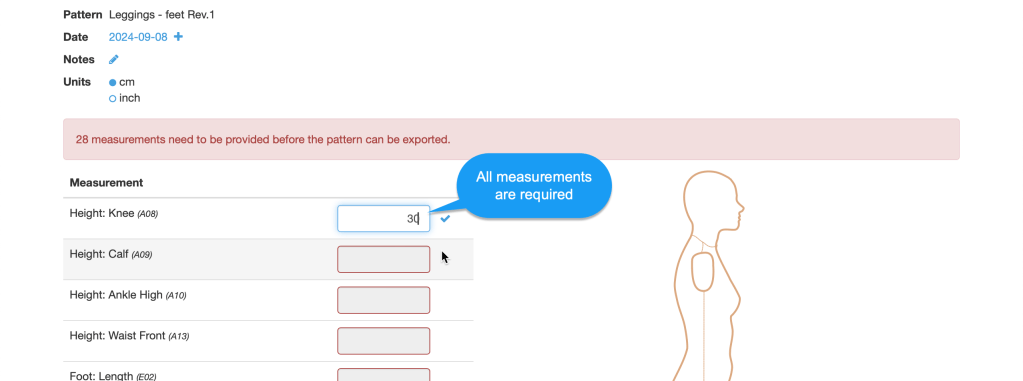
Enter measurements. All measurements are required.
See Catsuit measurements guide.
Then return to the pattern. This should now be showing your measurements.
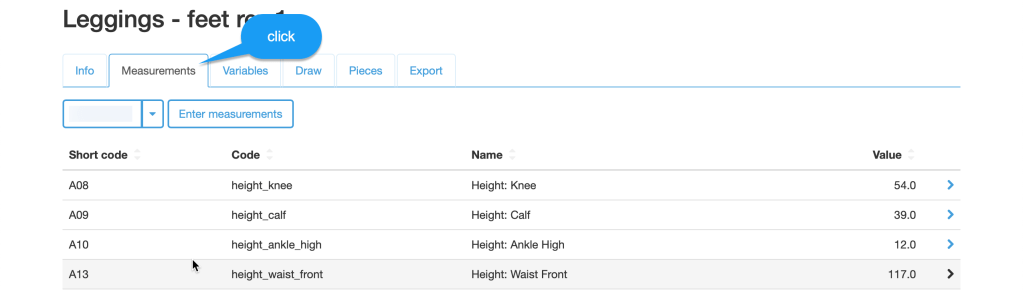
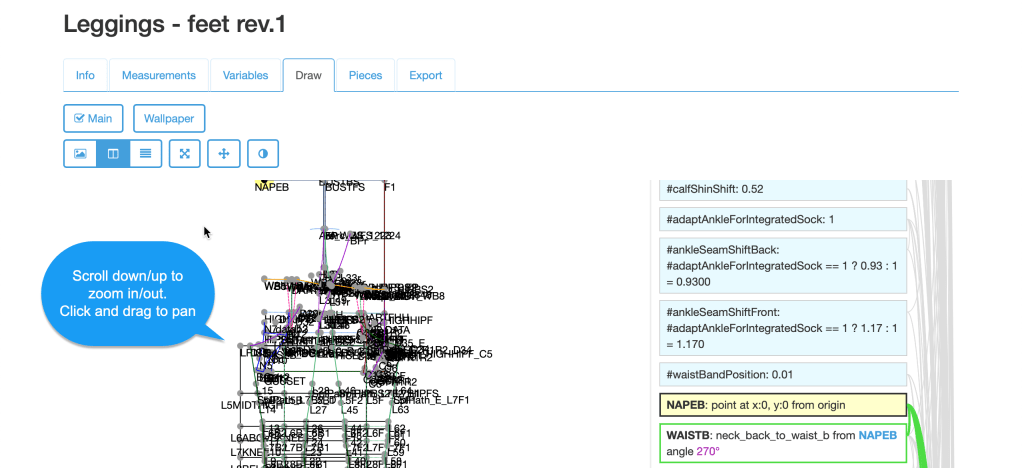
Switch to ‘Draw’ tab. The pattern is now displayed using your measurements.
Use scroll down/up to zoom in/out, and click and drag to pan the drawing.
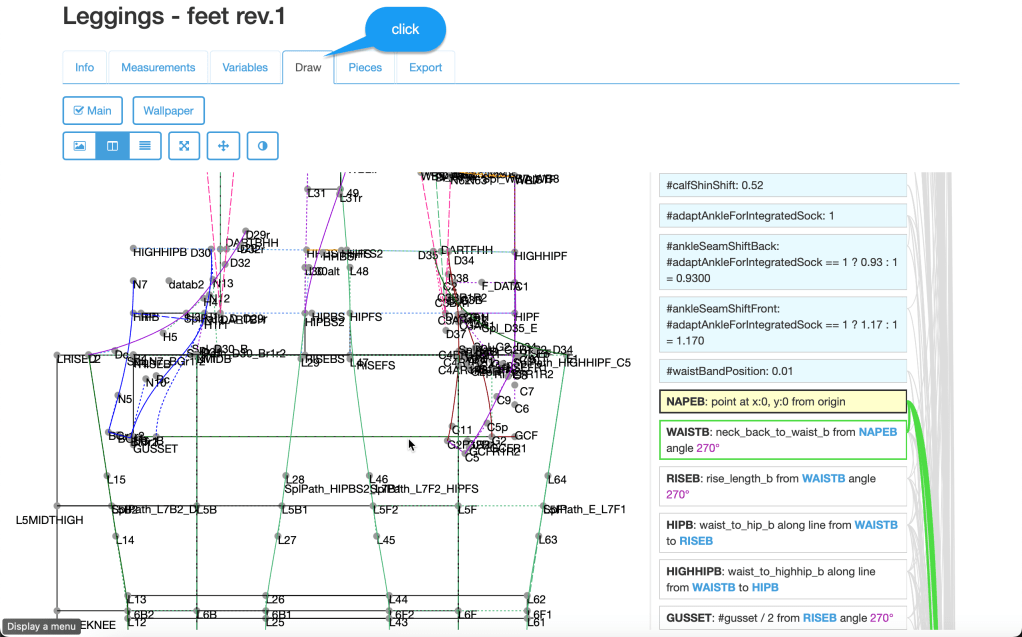
Check that the curves for each pattern piece look reasonable. If they do not then double check your measurements. If any of the drawing objects are shown with a red background then this indicates an error. The most likely type of error is the failure to find an intersection due to inconsistent measurements.
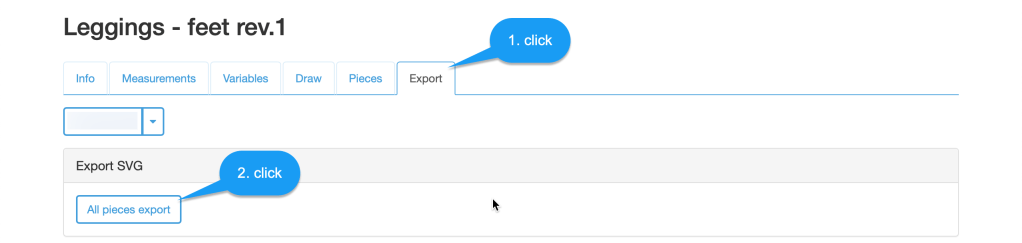
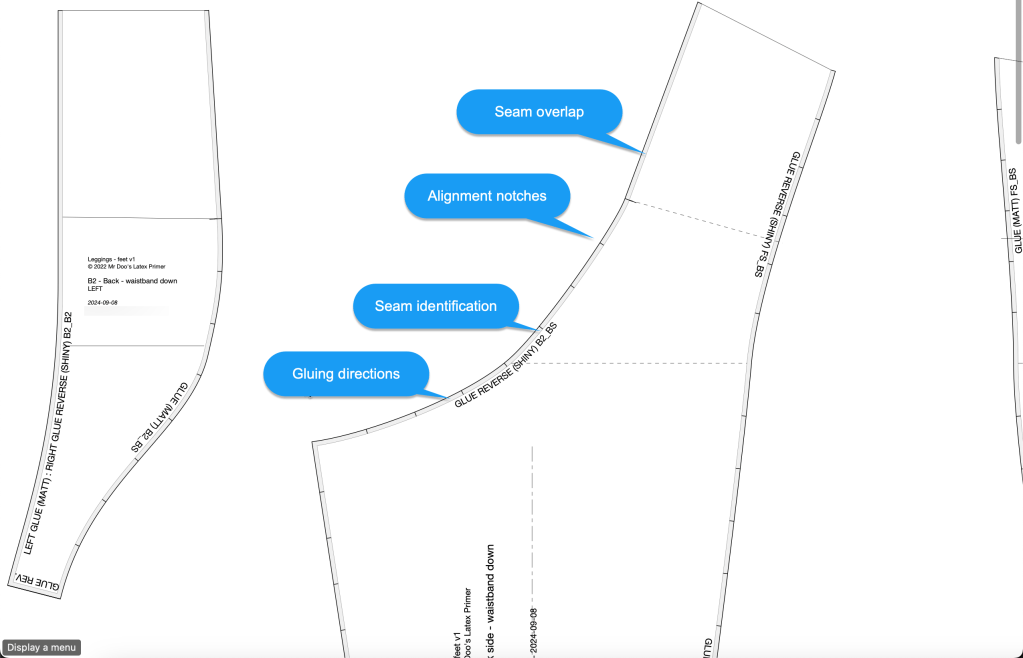
Switch to the ‘Export’ tab to export of the pattern as SVG.
Check the export looks reasonable.
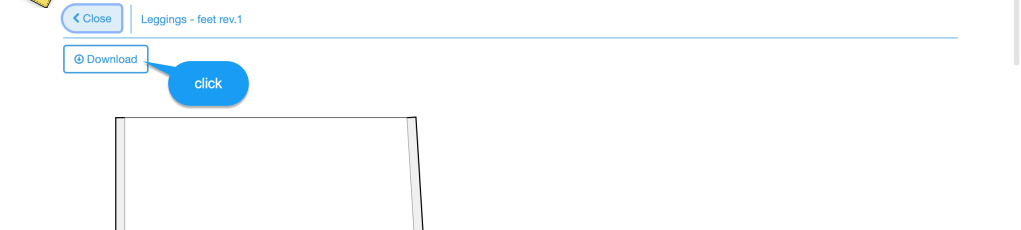
The pieces should be similar to the pattern exported with the shared measurements. If the curves do not look similar then please contact me.
Some vector graphics programs do not properly render the text along curves. InkScape renders them properly.
 mr doo's latex primer